


How to Connect a Brother Printer to a Laptop
Connecting a Brother printer to your laptop can be done through USB or a wireless connection, depending on your printer model and setup. This guide walks you through the available connection methods, how to add your printer on Windows or Mac, and where to find the appropriate Brother software when required. You’ll also find mobile printing options to help keep your devices connected.
How to Connect a Brother Printer to a Laptop
On this page
- What Do You Need to Connect a Printer to a Laptop?
- How Do You Connect a Brother Printer Using USB?
- How Do You Connect a Brother Printer Using Wi-Fi?
- Watch the Setup in Action
- How Do You Add a Brother Printer to a Windows 11 Laptop?
- How Do You Add a Brother Printer to a Mac?
- What Additional Brother Printer Features Are Available?
- How Can You Connect a Brother Printer to a Mobile Device?
- How Do You Maintain Printer and Laptop Connectivity?
- Frequently Asked Questions
- Related Resources
Still having trouble?
Visit our Support Centre for more help, guides and FAQs.

Quick Answer
To connect a Brother printer to a laptop, use either a USB cable or a wireless Wi-Fi connection. For Wi-Fi setup, connect the printer and laptop to the same network, then add the printer through your computer's printer settings. For USB setup, follow the installation instructions for your Brother model and connect the cable when prompted. Depending on your printer and operating system, you may also need Brother software or drivers.
What Do You Need to Connect a Printer to a Laptop?
What you need depends on your Brother printer model, laptop, operating system and connection method.
Before starting, identify your exact Brother printer model and decide whether you want to connect through USB or Wi-Fi.
Before starting, identify your exact Brother printer model and decide whether you want to connect through USB or Wi-Fi.
For a USB Connection
You may need:
- Your Brother printer and power cord
- A compatible USB cable and suitable port or adapter
- Your printer’s model-specific setup instructions
- Brother software or a printer driver, if required for your model and operating system
For a Wi-Fi Connection
You may need:
- A Brother printer that supports wireless networking
- Access to your Wi-Fi network
- Your network name and password, where required
- Your laptop connected to the appropriate network
- Brother software, if required for your model or the functions you want to use
Do You Always Need to Install a Printer Driver?
Not necessarily. The software required depends on your Brother printer, operating system and connection method. Windows may be able to detect and set up compatible printers, while supported Brother printers can work with AirPrint on a Mac without a separate driver. Brother software may still be required or recommended for your model or for additional functions such as scanning and machine management. Check Brother Support for your exact model before downloading software.
How Do You Connect a Brother Printer Using USB?
A USB connection creates a direct wired connection between your Brother printer and laptop.
1
Identify your Brother printer model
Check the model so you can use the correct installation instructions and software.
2
Turn on the printer
Connect it to power and switch it on.
3
Check the setup instructions for your model
Visit Brother Support and search for your printer.
4
Download or launch Brother software if required
Select the software appropriate for your printer and operating system.
5
Follow the installation instructions
If the installer tells you to wait before connecting the USB cable, connect it only when prompted.
6
Add the printer if required
Complete any Windows or macOS printer setup steps shown during installation.
7
Print a test document
Confirm that the laptop and printer are communicating correctly.
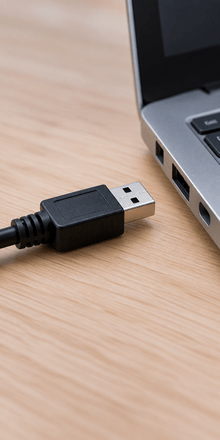
A direct connection that works.
i
The exact USB sequence can vary by Brother model and software configuration, so model-specific Brother instructions should take priority over a generic installation sequence.
How Do You Connect a Brother Printer Using Wi-Fi?
A Wi-Fi connection lets a supported Brother printer communicate with your laptop without a direct USB connection.
1
Confirm that your Brother printer supports wireless networking.
2
Turn on the printer and your laptop.
3
Prepare your Wi-Fi details
Have your network name and password available if your setup method requires them.
4
Connect the Brother printer to Wi-Fi
Follow the wireless setup method specified for your model. Available methods can vary by machine.
5
Connect your laptop to the appropriate network.
6
Add the Brother printer on your laptop
Use the printer settings in Windows or macOS.
7
Install Brother software if required
Check the downloads and instructions for your exact model.
8
Print a test document
Successful printing confirms that the printer and laptop can communicate.

i
If you cannot find the wireless setup controls described in a general guide, refer to the instructions for your exact Brother model rather than assuming that every machine uses a touchscreen or settings screen.
Watch the Setup in Action
(for supported Ink Tank models)
If you have a supported Brother Ink Tank printer, our Easy Setup Guide provides step-by-step videos to help you get started.
View Easy Setup Guide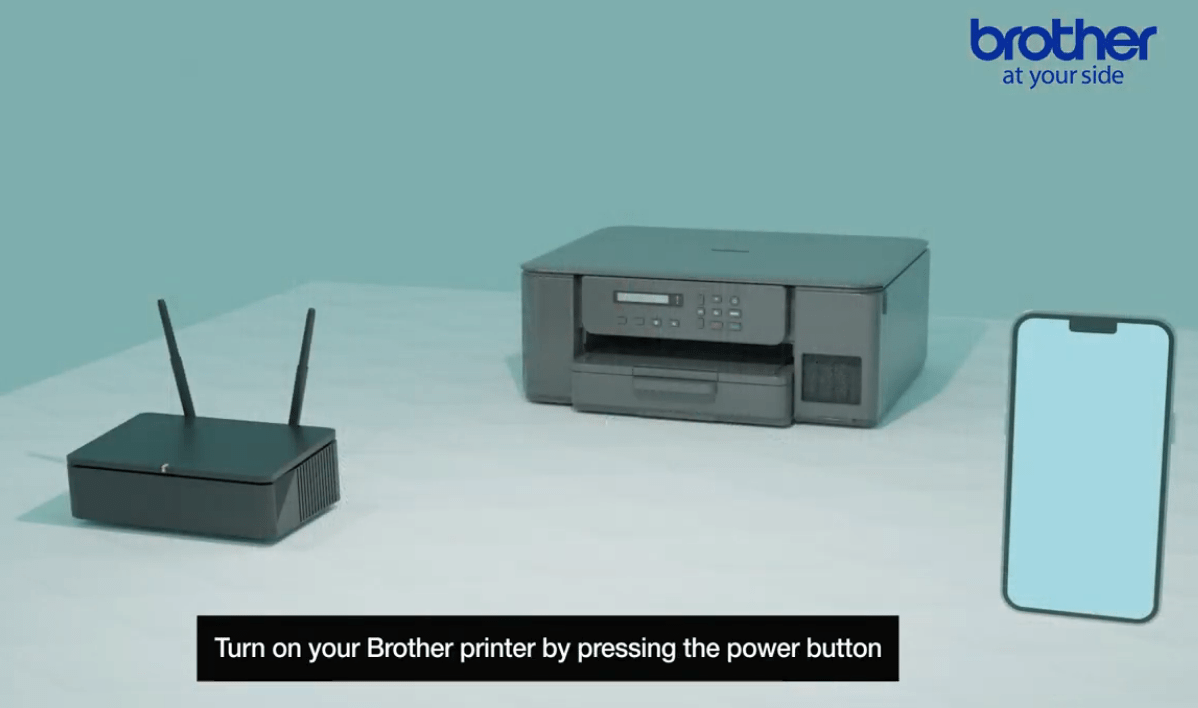
How Do You Add a Brother Printer to a Windows 11 Laptop?
After establishing the USB or Wi-Fi connection, Windows 11 may detect
your printer automatically.
If you need to add it manually:
1
Open Settings on your Windows 11 laptop.
2
Go to Bluetooth & devices.
3
Select Printers & scanners.
4
Choose the option to Add device.
5
Select your Brother printer when it appears.
6
Follow the instructions displayed by Windows.
7
Install Brother software if your printer or required functions need it.
If your printer does not appear, first check the USB or network connection and then use the troubleshooting steps below.
How Do You Add a Brother Printer to a Mac?
Supported Brother printers can be added through the printer settings in macOS.
1
Make sure your Brother printer is turned on and connected using your chosen method.
2
Open System Settings on your Mac.
3
Select Printers & Scanners.
4
Choose the option to add a printer.
5
Select your Brother printer when it appears.
6
Complete the setup using the available option for your supported printer.
AirPrint-compatible Brother printers can print from a compatible Mac without installing a separate Brother printer driver. Availability depends on the printer model and setup. If you require additional Brother functions, check the support information and available software for your exact printer model.
What Additional Brother Printer Features Are Available?
Depending on your Brother printer model, additional functions may be available beyond printing from your laptop.
These can include:
- Wireless printing: Print wirelessly from a computer, smartphone or tablet.
- Duplex printing: Print on both sides of the paper on supported models.
- Scan to computer: Scan documents and photos to your computer.
- Copying: Make copies of documents and photos.
- Fax: Send and receive faxes on machines that provide this function.
Check the specifications and support information for your Brother printer to determine which functions are available on your model.
How Can You Connect a Brother Printer to a Mobile Device?
In addition to laptop setup, Brother offers mobile printing solutions that provide flexibility and convenience.
Brother Mobile Connect
A mobile app that helps you print, scan, and manage your Brother printer. Easily print from your mobile device. Learn more here.
Apple AirPrint
For Apple users, AirPrint allows you to print wirelessly without installing additional drivers. Easily prrint from Apple devices. Learn more here.
Mopria Print Service
A service that allows Android devices to print on compatible printers. Easily print from Android® devices. Learn more here.
These features ensure you can print from virtually anywhere, whether from your laptop or mobile device.
How Do You Maintain Printer and Laptop Connectivity?
After successfully connecting your Brother printer and laptop, a few basic maintenance practices can help keep your setup working as intended:
- Keep your printer and laptop software updated.
- Regularly clean your printer's printhead and cartridges where applicable.
- Use genuine ink or toner and high-quality paper.
- Keep your printer and laptop away from extreme temperatures and humidity.
- Use appropriate electrical protection for your printer and laptop.
Keeping both the printer and laptop properly maintained can help you continue printing documents, reports, marketing materials and photos when you need them.
Frequently Asked Questions (FAQs)
-
Can I connect my Brother printer to my laptop without a USB cable?Yes, if your Brother printer supports the wireless connection required for your setup. Instead of connecting the printer directly to your laptop with a USB cable, follow the instructions for your printer to connect it to your Wi-Fi network. The available connection options depend on your Brother printer model, so check its instructions or support information before setup.
-
How do I connect a Brother printer to my laptop using USB?Use a USB cable that is compatible with both your Brother printer and laptop. Connect the printer to a power outlet and switch it on, then connect the USB cable between the printer and laptop. Download the appropriate installation file from Brother Support and follow the installation instructions to complete the printer and software setup.
-
How do I connect a Brother printer to Wi-Fi?For a wireless connection, turn on your Brother printer and follow the wireless setup instructions provided for your specific printer to connect it to your Wi-Fi network. After establishing the network connection, download the appropriate Brother installation file and follow the on-screen instructions on your laptop. The exact wireless setup process can differ depending on the Brother printer model.
-
Do I need a printer driver to connect my Brother printer to my laptop?The software requirements depend on the printer, laptop and setup being used. The Brother support website provides printer drivers and installation files for Brother machines. Before installing software, search for your specific printer model so you can identify the appropriate downloads and instructions rather than assuming the same driver or installation process applies to every Brother printer.
-
How do I know if my Brother printer is connected correctly?After completing the installation, perform a simple print test. Open a document in a word-processing application, enter a few words and select Print. Choose your Brother printer from the available printers. If the document prints correctly, your printer and laptop are communicating and the printer is ready to use for your normal printing tasks.
-
Can I also print from my phone after setting up my Brother printer?Supported Brother printers can offer mobile printing options such as Brother Mobile Connect, AirPrint or Mopria. Brother Mobile Connect can provide printing, scanning and machine-management functions on supported devices, while AirPrint and Mopria provide mobile printing options for compatible Apple and Android environments respectively. Check your Brother printer's specifications to determine which mobile features are supported by your particular model.

How to Choose a Business Printer in 2026 | Brother SG
With technology, we are faced with the dilemma of choice – now more than ever before. Today, most laptops and smartphones feature similar capabilities, with the biggest differentiators being form factor, design and certain hardware and operating system preferences. When it comes to choosing a printer or all-in-one for your SMB …
Continue reading “Your essential guide to buying a business printer in 2026”

Best Home Printer Guide | Choose the Right Printer Easily
Are you tired of constantly running to the print shop every time you need a document printed? Well, it's time to invest in a good home printer that can save you time and money. But with so many options available in the market, choosing the best one for your needs can be overwhelming. Don't worry, we've got you covered.
Continue reading"Printing Made Easy How to Choose the Best Home Printer for Your Needs"

Best Printers for Corporate Office Use | Brother SG
The best printer for corporate office use depends on what your organisation needs to print and which functions are required in the workplace. For corporate offices in Singapore, the Brother models available for consideration include the HL-L5210DN, HL-L5210DW, HL-L6415DW, MFC-L5710DN, MFC-L5915DW, MFC-L6915DW, MFC-L9630CDN, HL-L8260CDN, HL-L8360CDW, MFC-L8690CDW, MFC-L8900CDW, HL-T4000DW, MFC-T4500DW, MFC-J3940DW, MFC-J2340DW and MFC-J2740DW. Rather than choosing solely by model, businesses should first define their office requirements and then compare the appropriate Brother options.

Subscribe for Blog update